 (925) 293-3313

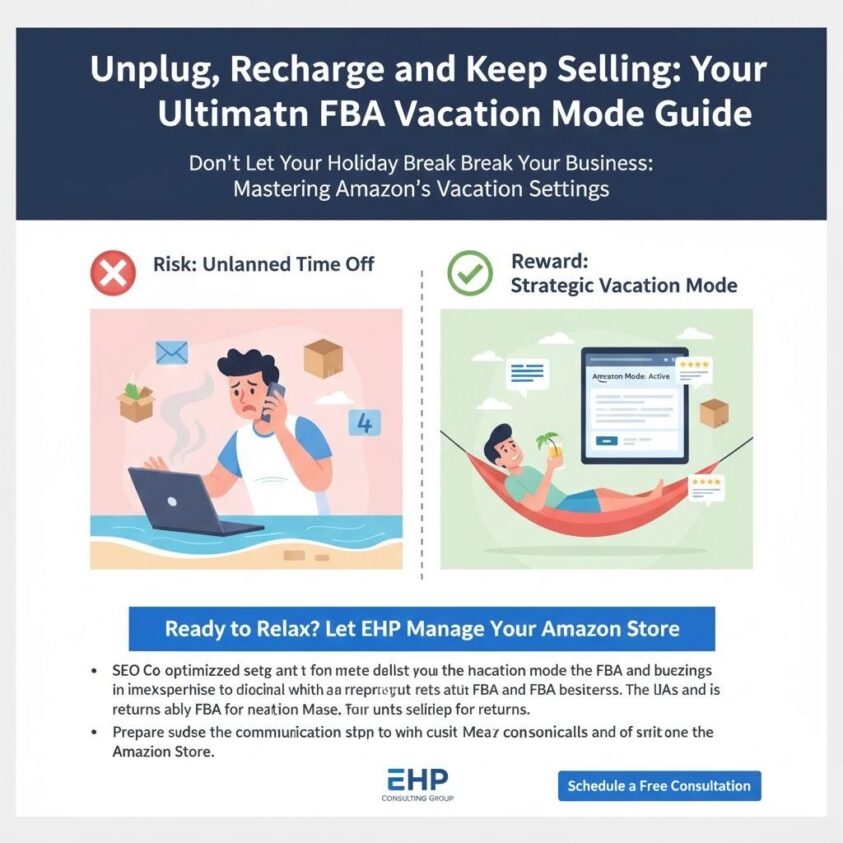
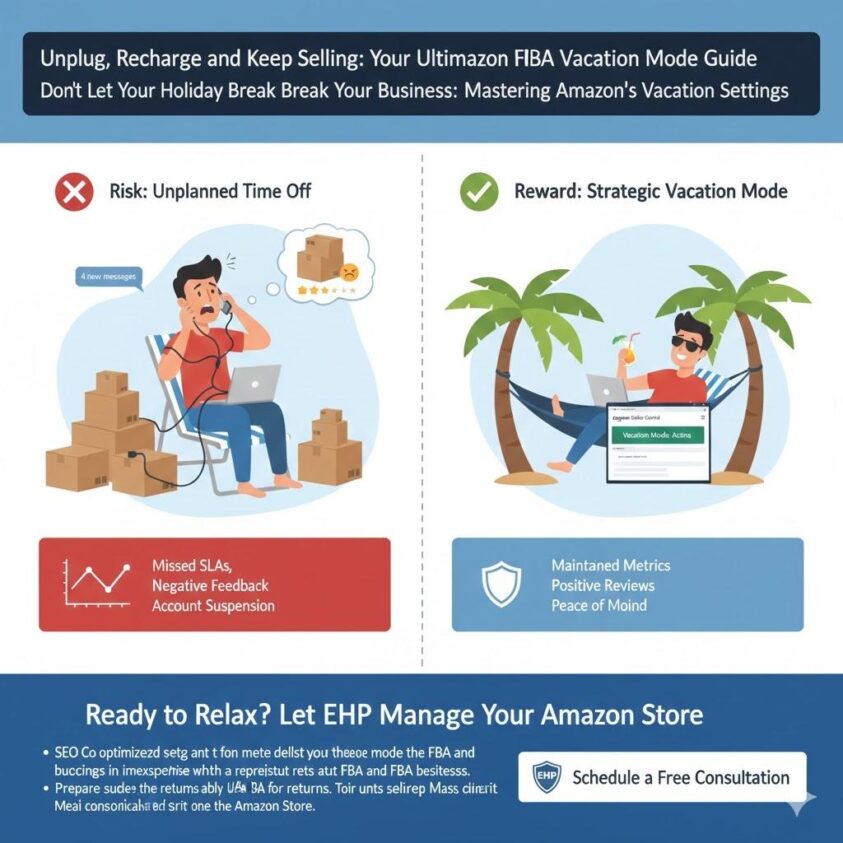
Don’t Let Your Holiday Break Break Your Business: Mastering Amazon’s Vacation Settings
The dream of Amazon FBA often includes the promise of freedom and flexibility. Yet, for many sellers, the thought of stepping away from their business—even for a much-needed vacation—is a source of intense anxiety. What about orders? Customer messages? Returns? Will my sales tank?
At EHP Consulting Group, we understand these concerns. That’s why we’ve put together this comprehensive guide to Amazon’s Vacation Mode, ensuring you can take that well-deserved break without jeopardizing your hard-earned success. This isn’t just about flipping a switch; it’s about strategic planning to maintain your brand reputation and sales momentum while you’re away.
Understanding Amazon Vacation Mode: More Than Just a Pause Button

Many new sellers believe “Vacation Mode” completely shuts down their store. This isn’t entirely accurate, especially for FBA sellers.
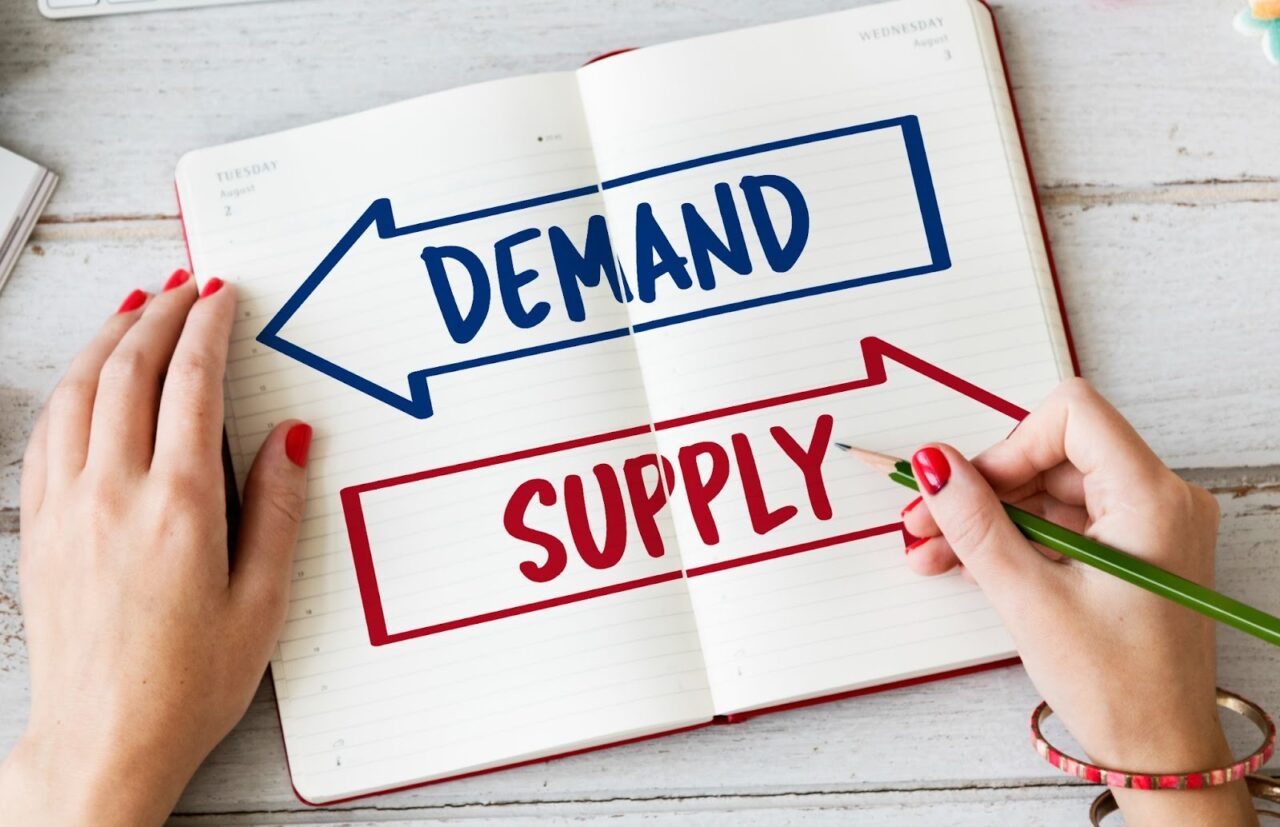
FBA vs. FBM: A Crucial Distinction
- FBA (Fulfillment by Amazon) Sellers: When you enable Vacation Mode, your FBA listings remain active. Why? Because Amazon is handling the fulfillment. Your inventory is in their warehouses, and they continue to ship products, process returns, and manage customer service related to fulfillment. You won’t need to worry about shipping orders while you’re sipping a piña colada.
- FBM (Fulfillment by Merchant) Sellers: For FBM listings, Vacation Mode truly pauses your sales. Your self-fulfilled listings will be made inactive to prevent new orders from coming in. This is essential to avoid violating Amazon’s strict shipping performance metrics while you’re unavailable.
Why Use It If FBA Stays Active?
Even as an FBA seller, Vacation Mode is valuable for managing customer communications. If a buyer has a product-specific question that Amazon’s customer service can’t answer, it will still be routed to you. Vacation Mode ensures you won’t be penalized for delayed responses while you’re away.
Your Step-by-Step Guide to Activating Amazon Vacation Mode
Preparing your store for your absence is straightforward, but precision is key.
- Log in to Seller Central: Navigate to the main dashboard.
- Go to Settings: In the top right corner, hover over “Settings.”
- Select “Account Info”: This will take you to your seller account details.
- Find “Listing Status”: On the “Account Info” page, locate the “Listing Status” section and click “Going on a vacation?”
- Set Your Status: You’ll see options to set your listings to “Inactive” for various marketplaces. Select “Inactive” for all marketplaces where you fulfill orders (FBM) and wish to pause new sales. Remember, your FBA listings will typically remain active by default.
- Save Changes: Don’t forget to click “Save” to apply your new settings.
Pro-Tip: Make sure you do this a few days before your actual departure. This gives any pending orders time to process and ship out, and ensures the system updates correctly across all marketplaces.
What Happens When You’re in Vacation Mode?
- FBM Listings Disappear: Your self-fulfilled products will no longer appear in search results or on product detail pages.
- FBA Listings Continue Selling: Your FBA items remain visible and purchasable. Amazon continues to manage these sales.
- Customer Service: Amazon handles FBA-related customer service. For FBM, any pending customer messages still require a response within 24 hours to maintain your metrics.
- Returns: Returns for both FBA and FBM will still be processed according to Amazon’s policies. You’ll need to monitor these upon your return.
Coming Back from Vacation: Reactivating Your Listings
Reactivating your store is just as simple:
- Follow steps 1-4 above.
- Change your “Listing Status” back to “Active.”
- Save changes.
It can take a few hours for all your listings to reappear across Amazon’s catalog. Plan to reactivate a day before you’re ready to start fulfilling orders again.
The Smart Seller’s Pre-Vacation Checklist
Before you hit that “Inactive” button, run through this checklist:
- Clear All Pending Orders: Ensure all FBM orders are shipped and confirmed.
- Respond to All Customer Messages: Aim for an empty inbox before you leave.
- Check Inventory Levels: For FBA, ensure you have sufficient stock. For FBM, verify you don’t have backorders that will need attention immediately upon return.
- Set an Auto-Responder (Optional but Recommended): While Amazon expects 24-hour responses, an auto-responder for direct messages can set customer expectations.
- Plan Your Return: Know exactly when you’ll reactivate and be ready to jump back into managing your FBM orders and customer queries.
🚀 Take a Real Break: Let EHP Consulting Group Manage Your Amazon Store
Navigating Amazon FBA’s intricacies, even for something as simple as taking a vacation, highlights the constant demands on a seller’s time and expertise. What if you could truly unplug, knowing your Amazon business is not just maintained but actively optimized in your absence?
At EHP Consulting Group, we specialize in comprehensive Amazon account management. From optimizing your listings and running profitable PPC campaigns to handling inventory, ensuring compliance, and managing customer service, our expert team takes the operational burden off your shoulders. We guarantee your business thrives, whether you’re at your desk or on a beach.
Ready to achieve true freedom and consistent growth with your Amazon business?
👉 Schedule Your Free 30-Minute Consultation with EHP Consulting Group Today!
Let us handle the complexities so you can focus on what you do best—or simply enjoy your next well-deserved vacation, worry-free.
YouTube Channel Link: EHP Consulting Group on YouTube
TikTok Profile Link: EHP Consulting Group on TikTok
Written By: Jhan Rose Magbanua
Email: [email protected]
Website: http://www.ehpconsultinggroup.com
Number: 925-293-3313
Date Written: December 3, 2025