 (925) 293-3313
A cluttered digital storefront can be just as damaging as a messy physical one. For Walmart Marketplace sellers, managing your product catalog is essential for maintaining good account health and providing a smooth customer experience. Over time, you’ll inevitably need to remove listings, whether they’re seasonal, discontinued, or simply not performing.
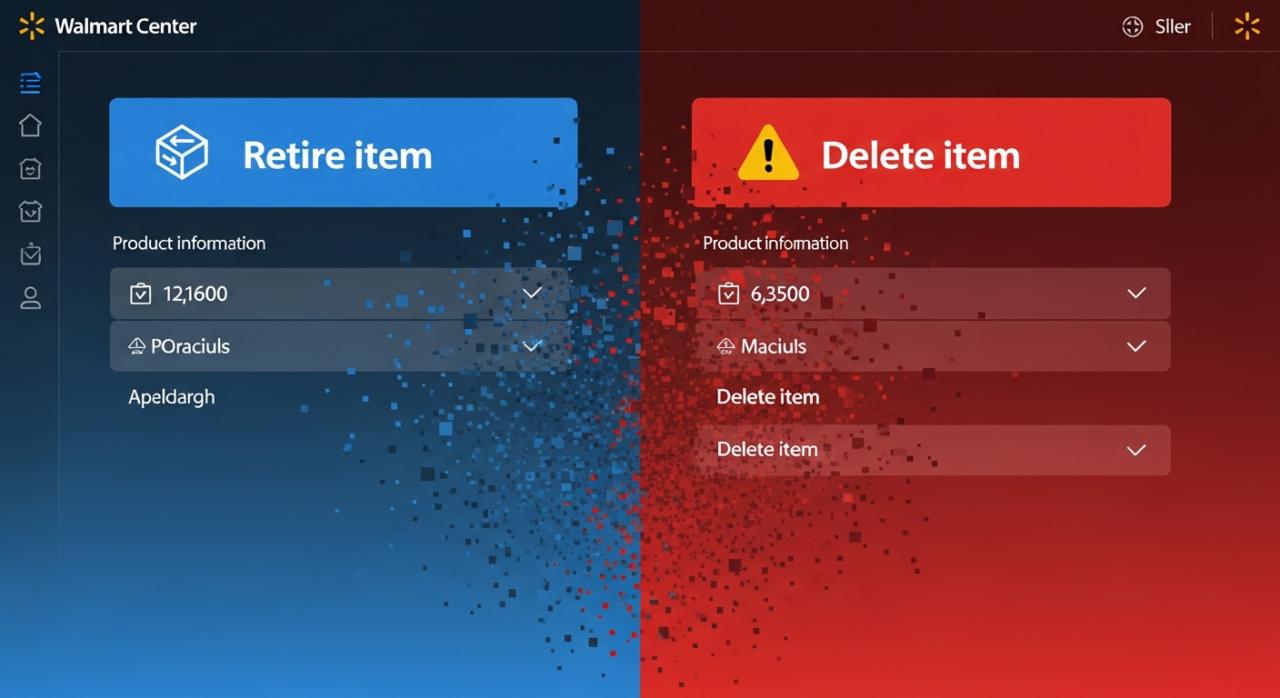
But how do you do it correctly? Walmart offers two distinct methods: retiring and deleting. Understanding the difference is the first step to a cleaner catalog. Retiring a listing is a non-permanent deactivation. It takes the product off the public-facing site but keeps it, and all its historical data, in your catalog for potential reactivation later. Deleting, on the other hand, is a permanent, irreversible removal of the product and all its data from your Seller Center account.
Let’s walk through the exact steps to manage your listings effectively.
1. How to Retire a Single Listing
For quickly removing one or two items, the manual retirement process in Seller Center is your most direct route. This is the safest option for deactivating a product you might want to sell again in the future.
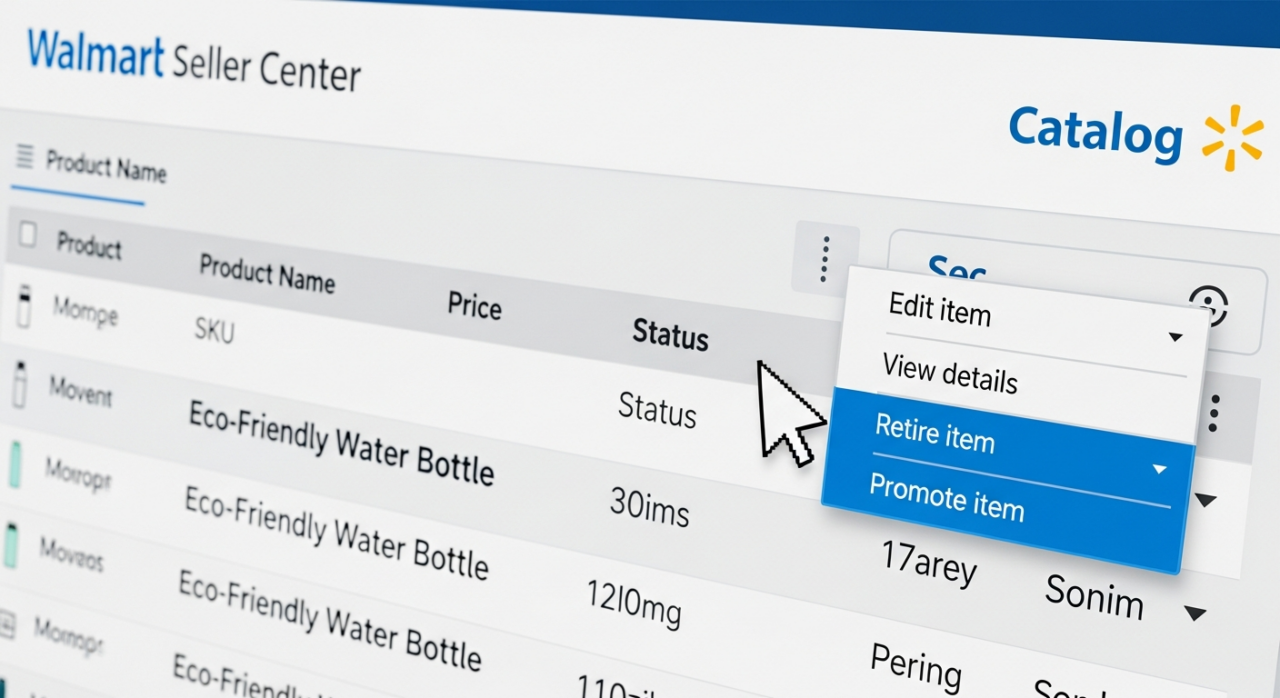
First, ensure the item’s inventory is set to zero. If you use Walmart Fulfillment Services (WFS), you must create a removal order to return or dispose of your inventory before you can proceed.
Once your inventory is at zero, follow these steps:
- Navigate to “Catalog” in your Seller Center dashboard.
- Find the product you wish to deactivate.
- Click the three vertical dots on the right side of the listing row.
- From the dropdown menu, select “Retire item”.
The system will process your request, and the item will be unpublished from Walmart.com.
2. How to Retire Listings in Bulk
When you need to clean up an entire product line or a large number of seasonal items, retiring them one by one is impractical. Instead, use the bulk update feature. This method involves setting a “Site End Date” in the past, which effectively unpublishes the items. For sellers looking to master these workflows, specialized courses can offer advanced strategies.
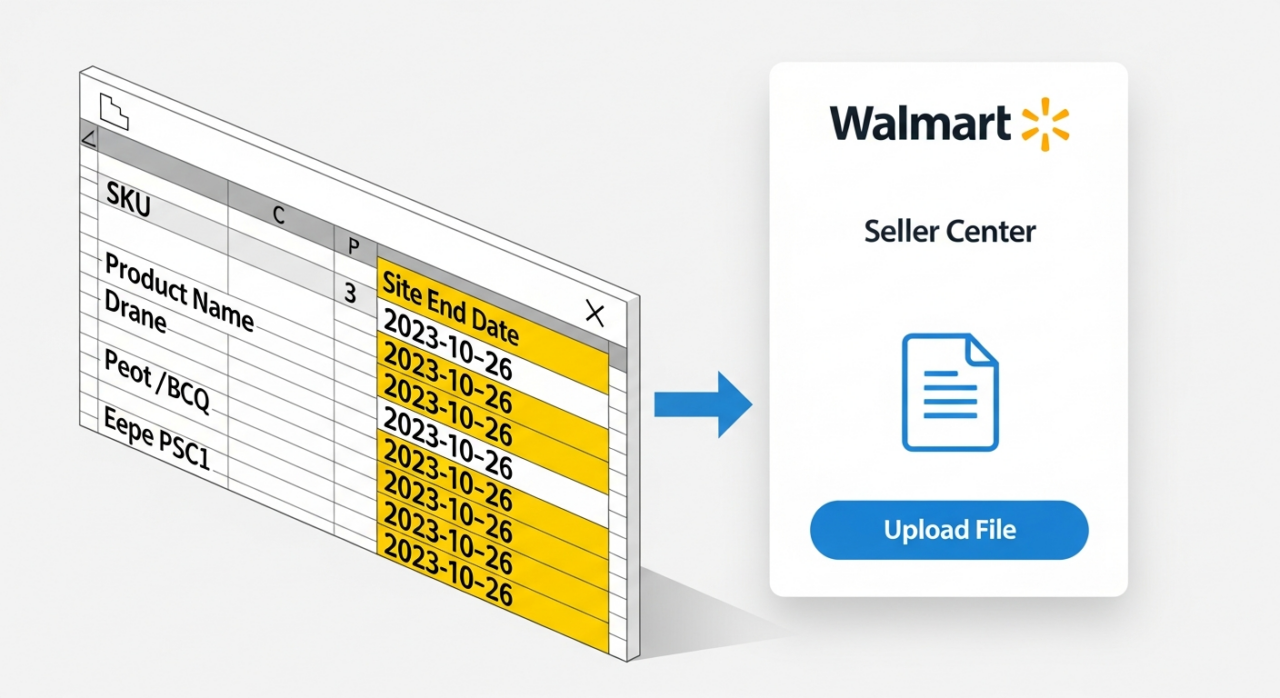
Here’s the process:
- In Seller Center, go to the “Catalog” section and click “Update items”.
- Choose to update your listings by file.
- Download the appropriate bulk update template for your product category.
- Open the spreadsheet and find the SKUs you want to retire.
- Locate the column labeled “Site End Date”.
- For each item you want to retire, enter a date that has already passed (e.g., yesterday’s date).
- Save the file and upload it back into Seller Center.
This will trigger the system to unpublish all specified items, saving you a significant amount of time.
3. Retiring Listings via the API
For sellers with technical resources or those who use third-party inventory management software, the Walmart Marketplace API provides a powerful, programmatic way to manage your catalog.

The API includes a specific “Retire an item” call that allows you to automate the process. By sending a request with the specific SKU, you can retire an item without ever logging into the Seller Center interface. A successful call confirms the request has been received, and the update will be reflected after the standard processing time. This is an ideal solution for businesses with large, frequently changing catalogs.
4. The Option of Permanent Deletion
While retiring is reversible, deleting is final. This action completely removes the product from your catalog, and all associated performance data is permanently erased. You should only use this option when you are absolutely certain you will never sell that specific product again. Due to its permanent nature, retiring is generally the recommended first course of action. If you must delete an item, be aware that the action is irreversible.
5. Important Considerations Before You Act
Before you begin retiring or deleting listings, keep these critical points in mind to ensure a smooth process:
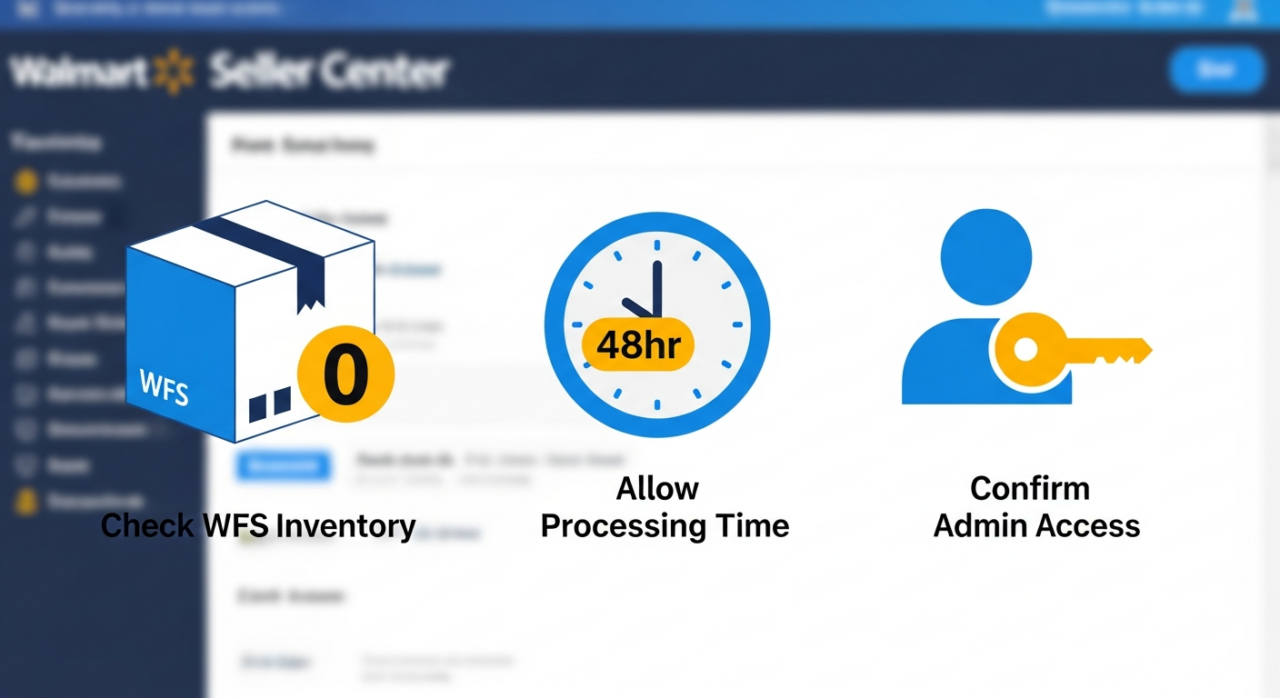
- WFS Inventory is Key: You cannot retire or delete a listing for a WFS item if it still has inventory in a Walmart fulfillment center. You must create a removal order and wait for the inventory count to reach zero first.
- Allow for Processing Time: Whether you retire an item manually, in bulk, or via the API, the change is not instantaneous. It can take up to 48 hours for the update to be fully processed and for the listing to be removed from the Walmart website.
- Admin Access is Required: To perform these actions, you must be logged in to a Seller Center account with admin-level permissions. If you cannot see the options to retire or delete, check your user permissions with the primary account holder.
If you’ve followed the steps and still face issues, it may be time to contact a consulting expert for personalized support.
Need Help Growing Your Sales?
We are here to help you scale.
Stay ahead with the latest tips and trends in online selling:
🎥 YouTube – EHP Consulting Group
📱 EHP Consulting Group
Written By: Janine Alaban
Email: info@ehpconsultinggroup.com
Website: http://www.ehpconsultinggroup.com
Number: 925-293-3313
Date Written: June 17, 2026