
 (925) 293-3313
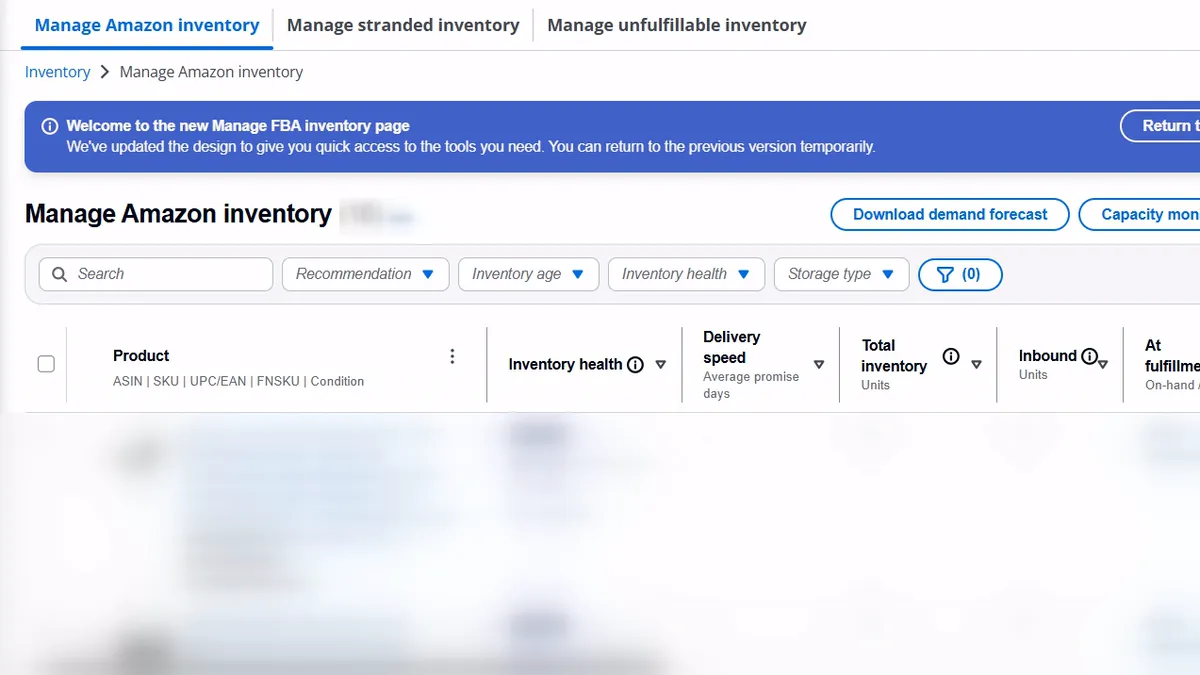
If you opened Seller Central and could not find the FBA inventory page, nothing is wrong with your account. Amazon renamed the page to Manage Amazon inventory and rebuilt the layout. This guide shows where it is now, what is different, and what to check first.
Want the source? Here is Amazon’s announcement, reposted here.
Where is the page now?
In the Seller Central menu, open Inventory and choose Manage Amazon inventory. At the top you will see three tabs: Manage Amazon inventory, Manage stranded inventory and Manage unfulfillable inventory.
A blue banner may offer a Return to previous version button. Amazon says that option is temporary, so it is worth learning the new page now.
What changed
- Total inventory. One column counts every unit in Amazon’s network, including units still on the way to Amazon.
- Location columns. Inbound, At global storage, At domestic storage and At fulfillment split that total. If you do not see them, select the Settings icon at the top right and unhide them.
- Restock settings. This column shows lead time and restock frequency for each product. You can edit them one product at a time or in bulk.
- Side panels. Select a status, a quantity or a column title and the details open beside the table, so you stay on the page.
What to check first
- Set up your columns. Use the Settings icon to choose which columns show and how many rows appear per page (10, 25, 50, 100 or 250). The default is 50.
- Look for out of stock and low stock. Open the Inventory health filter. Out of stock means nothing is on hand. Low stock means sellable units have dropped below Amazon’s recommended minimum.
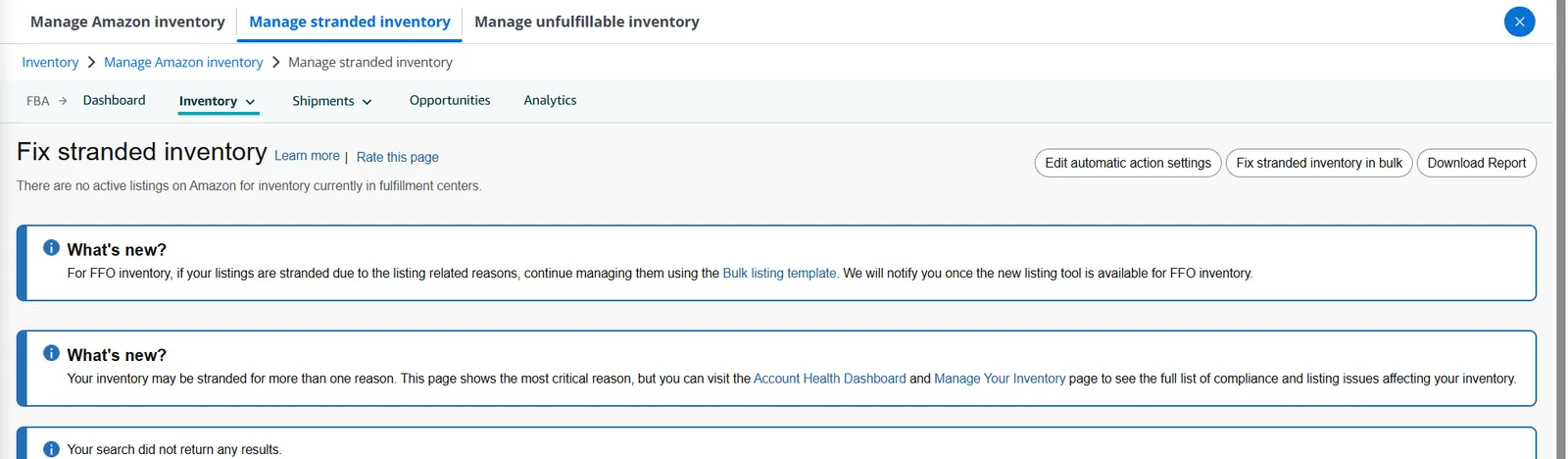
- Look for stranded inventory. Open the Manage stranded inventory tab. It lists the reason each product is stranded and what to do about it. Amazon warns that a product can show Low stock, Healthy or Excess and still be stranded, so do not trust the health label alone.

The Manage stranded inventory tab opens the Fix stranded inventory page. Account details are cropped out. - Check for inactive listings. The Listing status column shows Active or Inactive (out of stock). If a product that has stock is not Active, open Edit listing from the Actions menu and look for fields marked with an exclamation icon.
- Use filters together. Recommendation, Inventory age, Inventory health and Storage type can be combined. Select Save view to keep a combination you use often.
- Review your restock settings. Amazon builds its restock advice from your lead time and restock frequency. If those numbers are wrong, the advice is wrong too.
- Use bulk actions. Tick several SKUs, then open Bulk actions. The search box accepts an ASIN, FNSKU, MSKU, UPC or EAN of at least four characters.
- Check aged stock. Use the Inventory age filter. Amazon charges an aged inventory surcharge on units that have sat in a fulfillment center for 181 days or more, assessed on the 15th of each month.
Amazon’s own walkthrough is the Manage Amazon inventory overview help page (Seller Central sign-in required).
Want a second pair of eyes on your inventory?
If you are not sure where to start with stranded or inactive listings, our consultants can look at your account with you. Contact us or Schedule a call.